🎛️ Documentation: Operator Panel
Operator console and queue supervision. What it is, how it works and how to use it — explained step by step.
🎛️ Definition — Operator Panel
The Operator Panel is the console for reception and the call center: it shows live every extension in your company grouped by department, the queues with who is waiting and who is answering, and lets you handle calls with one click or by dragging. Supervisors can also listen to calls and move agents between queues. It runs in the browser, nothing to install.
🎬 Video: a tour of the console
About four minutes: how to sign in securely (password and two-step verification) and every area of the console, what it is and what it is for. It is narrated: turn the sound on.
Sample data with fictitious names and numbers. Below, the same console explained point by point.
🖥️ The console, point by point
This is the Operator Panel at panel.telharbor.com. Each number in the image is explained below.
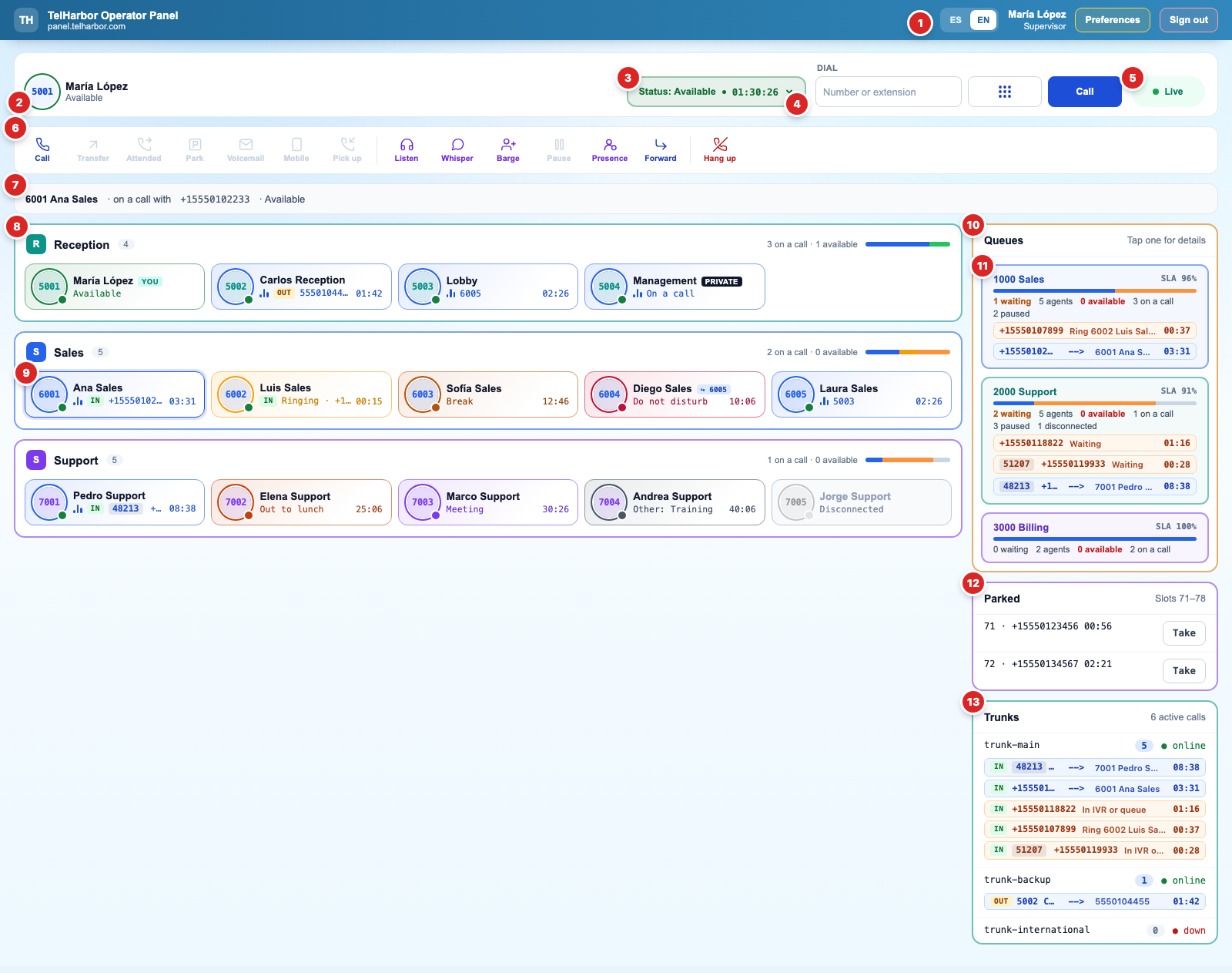
Sample data: Reception, Sales and Support groups; queues 1000 Sales, 2000 Support and 3000 Billing; main, backup and international trunks. Names and numbers are fictitious. Tap the image to see it full size.
- 1Top bar
Console language (ES / EN), your name and your profile. Preferences sets the ringtone, volume, sounds and notifications (see «Operator preferences» at the end). Sign out ends the session.
- 2Your extension
The number and name you operate with. The ring changes color with your state: green available, blue on a call, amber ringing and gray disconnected.
- 3Status (your presence)
Available, Break, Do not disturb, Meeting, Out to lunch, Other or Log out, with how long you have been in it. When Available you get calls from your queues; the other states pause you. It is the same status as in the TelHarbor UCaaS app.
- 4Dial
Type a number or an extension, or use the keypad. When you tap Call your extension rings first and the number is dialed when you answer.
- 5Live
Means the console is up to date (it refreshes on its own every 2 seconds). If it says PBX not responding, the phone system did not answer in the last few seconds and what you see may be out of date.
- 6Action bar
Lights up according to the extension you tap and what your profile allows: Call, Transfer, Attended, Park, Voicemail, Mobile, Pick up, Listen, Whisper, Barge, Pause, Presence, Forward and Hang up. Hover a button to see what it does and what it needs.
- 7Selected extension
A summary of the extension you tapped: whether it is on a call and with whom, its presence, its queues and whether it forwards calls.
- 8Group
Each department with its color, the number of extensions and a summary of how many are on a call and available, with a color bar.
- 9Extension card
Number, name, state and time. On a call it shows IN inbound or OUT outbound with the number; an internal call shows the other extension, with no tag; and a ringing one is amber. When paused you see the presence in its color: Break, Do not disturb, Meeting, Out to lunch or Other with its reason. Tags: You, Private (nobody sees who it talks to or can listen in) and ↪ forwarding. Drag your call onto another card to transfer it.
- 10Queues
A box with every queue your profile shows. Tap one to open its window: agents, add or remove, pause, priority (penalty) and listen.
- 11Each queue
Number and name, service level (SLA) and a bar: on a call, available, paused and disconnected. Below, the calls waiting: Ring and the extension if it is already ringing an agent, or Waiting if nobody has taken it yet; and answered calls as number --> extension with their duration. If the customer identified in the voice menu, their account code comes first: 48213 +1555…
- 12Parked
Calls on hold in slots 71 to 78, with the number and how long they have waited. Take brings that call to your extension.
- 13Trunks
The outside lines with their status (online or down) and how many calls they carry. Below, each call: IN number --> extension once answered, Ring and the extension while it rings, In IVR or queue if nobody has taken it yet, and OUT extension --> dialed number.
🗺️ Diagram — how it works
Actions: the operator taps an extension, TelHarbor UCaaS checks the permission and the phone system carries it out.
Live state: every change on the phone system reaches the screen on its own, without reloading.
Agent access: the administrator sends a link, the agent sets a password and signs in with their profile permissions.
Important: calls are answered on the phone or in the TelHarbor UCaaS Desktop app; no phone system can pick up a handset from the web. Instead of “hold”, the panel offers to park the call.
📘 Explanation (step by step)
For your company administrator — in the portal, UCaaS Operator → Operator Panel:
- In Buttons, sync with the phone system: your extensions and queues appear. Fix names, add the mobile of anyone who takes transfers and flag as Private anyone nobody should see or listen to.
- In Groups, create departments (Reception, Sales, Support…), pick color, extensions and queues, and who sees them.
- In Permissions, use Agent or Supervisor, or duplicate one. Tick which groups each profile sees and whether it can forward calls, listen to calls or add and remove queue agents.
- In Operators, create each person with their extension and profile. They receive a link to set their password.
- Supervisors use the same console inside the portal, at UCaaS Operator → Live, without leaving the module they are working in.
- To add or remove a queue agent, tap the queue (inside its group or in the Queues column): open the Add agents list, search and tick one or more extensions (or All) and tap Add; they all join with the chosen penalty (0 to 5: 0 gets calls first, same as Queue Reports → Monitor), or Remove next to the agent. You can also drag an extension onto the queue. Static agents are removed in the PBX. Adding, removing and penalty changes stay pending until Save (a new agent shows right away as New and a removed one is struck through with Undo); Close asks before discarding. Pause applies as soon as you tap it.
- To give an agent access: in Operators open their record and use Send link by email or Generate link to copy. With that link they create their password (it works once, for 48 hours) and then sign in at panel.telharbor.com, where they see the console with their template permissions, groups and language; they switch between Spanish and English at the top right.
- In the agent console, Preferences (top right) sets the ringtone and its volume (with Test ringtone), whether a sound plays when a call enters their queues, and whether the browser shows pop-up notifications. Browsers only allow sound after the agent taps the console once.
- Each extension card takes the color of its state: its presence color when available or paused, blue on a call, amber ringing and gray when disconnected.
- Change your presence with the Status pill, just like the TelHarbor UCaaS app; change an agent’s with the Presence button. Available unpauses their queues; the other states pause, and Do not disturb and Log out also turn on the phone’s Do Not Disturb.
- In Permissions, each template checks which groups, queues and trunks it sees, and whether it sees parked calls.
- If an agent reports a problem, TelHarbor support can open the console exactly as that agent sees it (their groups, queues, trunks, permissions and language) to reproduce it, without asking for their password. Anything done in that view is logged under support.
- In Access you see who has the console open right now (and can close their session), who got locked out by failed attempts (and unlock them) and the access log: every sign-in, pending code, failure or lock with its IP, internet provider, location, system, browser and the reason when it fails (unknown user, wrong password, account without a password yet or disabled).
- In the Queues column and in each queue window you see who is waiting, with their number, how long and which extension it is ringing, and the answered calls in progress: the customer number, the extension handling it and the duration.
- To load or change many operators at once: in Settings → Import and export download the Excel file, fill it in (gray columns are informational and * columns are required) and upload it. You first see what will be created, what changes and which rows have errors; nothing is saved until you tap Apply. Anything not in the file stays as it is.
- In the Trunks column each line shows its status (updated within seconds), how many calls it carries now and, below, each call: IN inbound number --> extension, OUT outbound extension --> dialed number, or Ring and the extension while it rings. Extension cards also carry IN or OUT.
For the operator — at panel.telharbor.com:
- Sign in with your username and password; if your profile requires it, confirm the code sent by WhatsApp or email.
- Tap an extension: the top bar lights up what you can do with it; hover a button to see what it does and, when it is off, what it needs. Drag a call onto another extension to transfer it.
- Change your presence (Available, Break, Meeting…) from the selector at the top.
- To call, type the number in Dial or open the keypad next to the field and tap Call: your extension rings first and the number is dialed when you answer.
- In the Queues column see who is waiting (and which extension it is ringing) and the calls in progress: number --> extension with their duration.
- If you forget your password, ask your administrator for a new link. After several failed attempts the account locks for a while; the administrator can unlock it in Access.
- In Preferences choose Spanish or English, your ringtone, sounds and alerts.
- If your profile shows Trunks, you see how many calls each line carries and the detail of each one, with IN (inbound) or OUT (outbound).
- When the call went through a menu where the customer entered their account number, you first see the account code and then their number (for example 65323 +15209038282); otherwise, just the number.
- A card that says Paused or Paused: reason is paused in its queues and gets no calls from them; hover to see the queues and since when.
- At the top right, Live means the console is up to date. If it says PBX not responding, the phone system did not answer in the last few seconds: what you see may be out of date until it comes back.
- What each profile can do with «own groups» or «own queues» is always enforced: listening, pausing or moving agents outside that scope is not allowed.
- Forwarding an extension can only go to another extension of the phone system or to the mobile loaded for that extension in Buttons. To forward to any other number, ask your company administrator.
Listening to calls is logged (who, whom and for how long). Your company must tell its agents and callers that calls may be monitored.
⚙️ Operator preferences
At the top right, Preferences opens this window. Your choices are saved to your user.
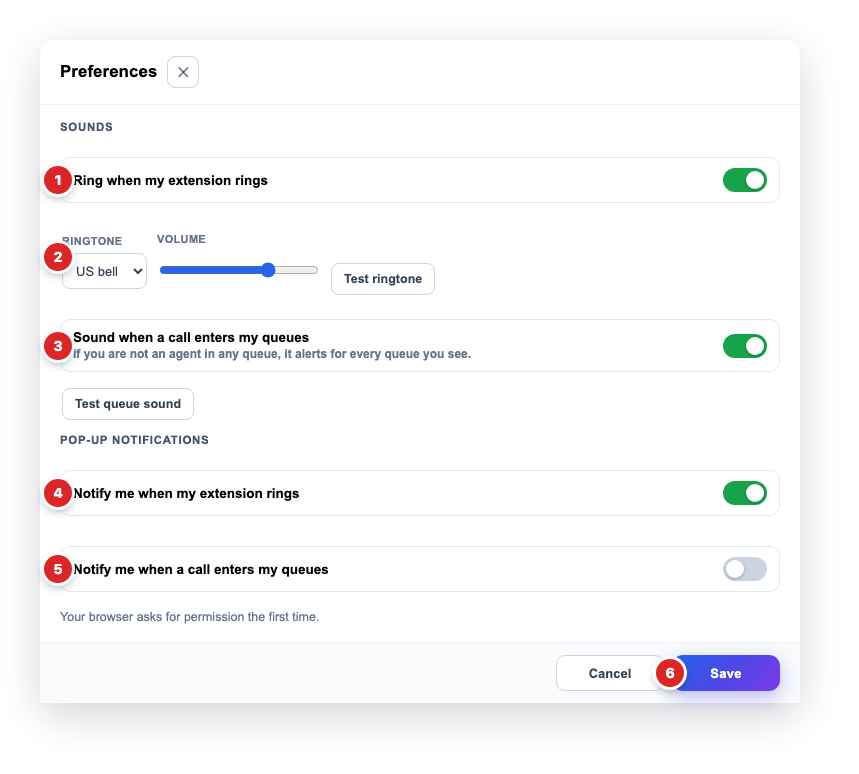
- 1Ring when my extension rings
The console also rings in the browser when a call reaches your extension, besides your phone or the app.
- 2Ringtone and volume
Pick one of the 8 ringtones, the same as in the TelHarbor UCaaS app (Silent included), and the volume. Test ringtone plays it before you save.
- 3Sound when a call enters my queues
A sound when someone starts waiting in your queues. If you are not an agent in any queue, it alerts for every queue you see. Test queue sound plays it.
- 4Notify me when my extension rings
A browser pop-up notification with the caller number, even while you work in another window.
- 5Notify me when a call enters my queues
A notification with the queue and how many calls are waiting. The browser asks for permission the first time; if you blocked it, allow it in the site settings.
- 6Save
Saves the preferences to your user, so they apply on any computer you sign in from. Cancel closes without changes.
Browsers only let a page play sound after it has been tapped once: tap anywhere on the console when your shift starts. Switch the language with ES / EN in the top bar.